Focus mode
The focus mode app built into your daily plan
Open Sunsama's focus mode opens one task full screen with a timer. It counts your real time against your estimate, so you finish the day knowing planned vs actual.
Get started · Download for desktop
The short answer
Focus mode shows one task, one timer and nothing else
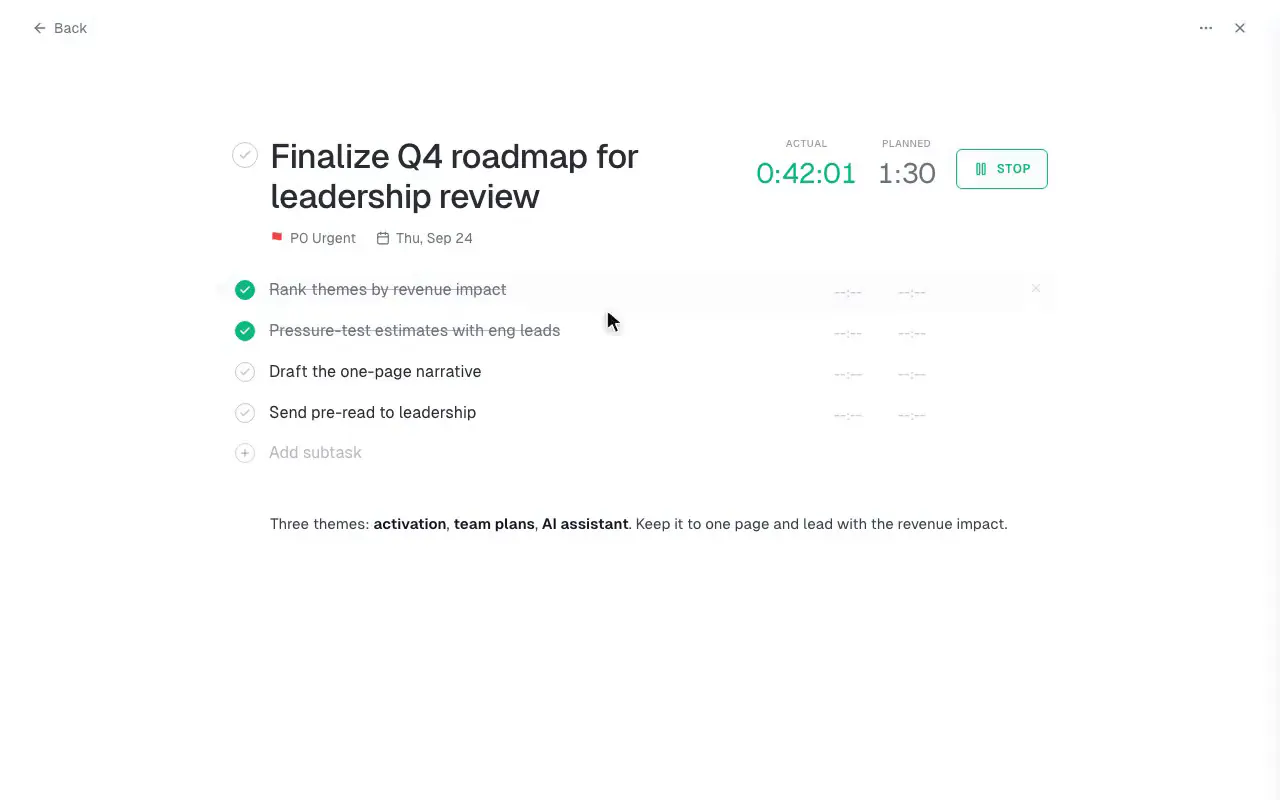
A focus mode app hides everything except the work in front of you. In Open Sunsama, press F on a task and it fills the screen: its title, subtasks, notes and a focus timer.
Press Space to start the timer. It counts up next to your estimate, like 0:42 / 1:30, and saves the real time to the task.
Finish the task and the next one on today's list opens. When the list is empty, you see how many tasks you did and how long you focused.
In short
- Press F on any task to open it in focus mode.
- Space starts and pauses the timer.
- The timer saves actual time next to your estimate.
- Finishing a task opens the next one on today's list.
- Your AI agent can read planned vs actual over MCP.
How it works
Plan it, block it, focus on it, then close the day
Focus mode is one step in a simple daily loop. Every clip below is a real recording of the app.
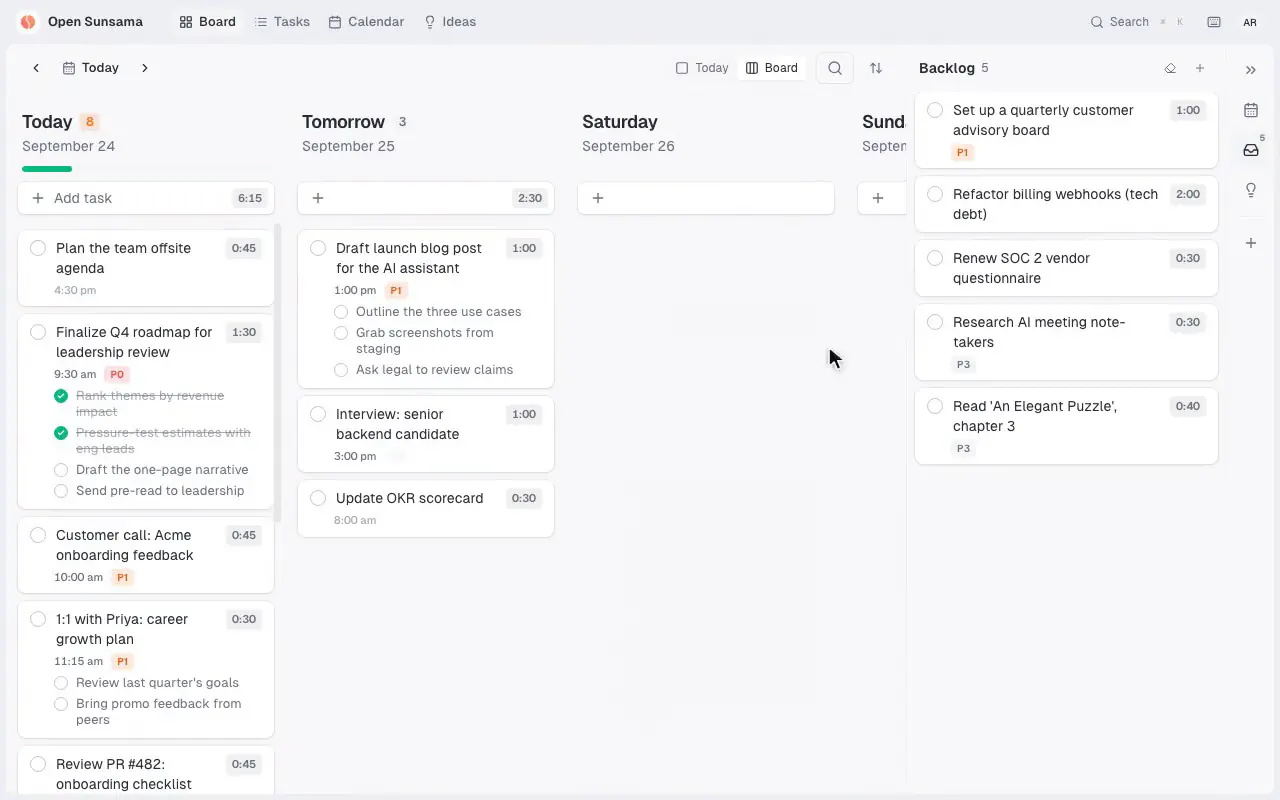
Pick today's tasks and estimate each one
Drag tasks into Today and give each one a time estimate. The estimate is what the timer measures against later.
Pick today's tasks and estimate each one Give the hard task a slot on the calendar
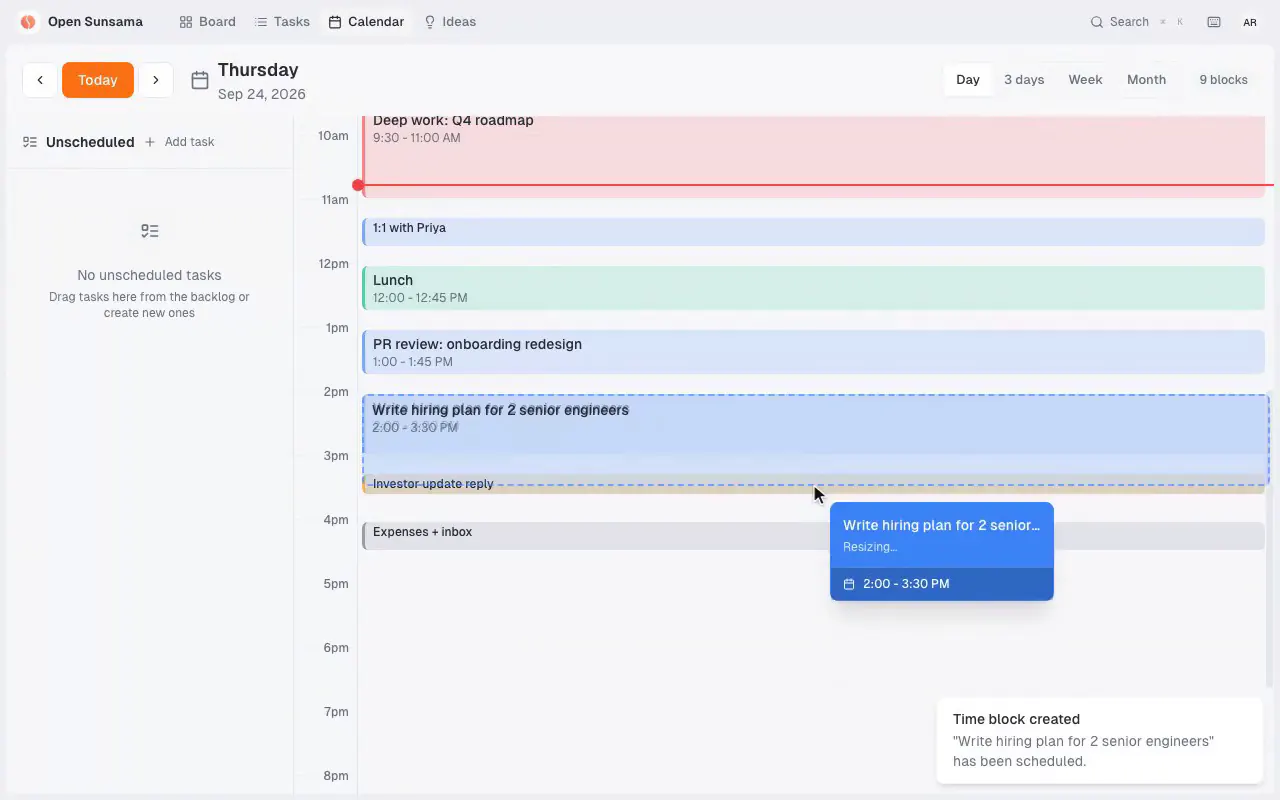
Drag your most important task into a free slot, away from your meetings. That block is your protected focus time.
Give the hard task a slot on the calendar Open the task full screen and start the timer
Press F, then Space. Work through the subtasks and write notes as you go. Press Esc when you want the board back.
Open the task full screen and start the timer End the day with planned vs actual
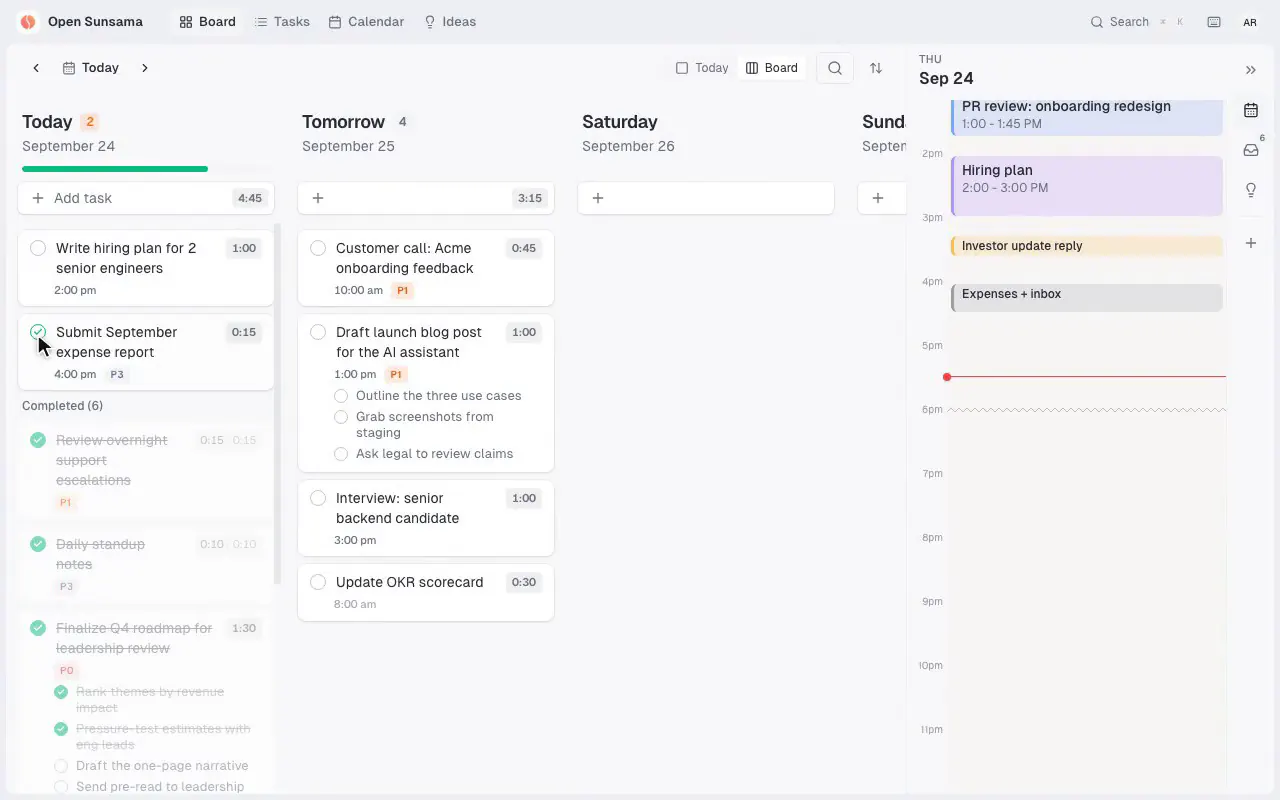
Check off what you finished. Each done task keeps its real time next to its estimate, so tomorrow's plan gets more honest.
End the day with planned vs actual
Planned vs actual
The focus timer shows how long tasks really take
Tasks often take longer than we think. The timer turns that guess into a number you can learn from.
The timer runs against your estimate
The timer sits next to the task title and shows real time over planned time. Press E to change the estimate, or W to fix the real time by hand.
Start a timer on another task and the first one stops and saves on its own. You never lose time you forgot to log.
- Counts up, so a long task never cuts you off
- The timer keeps running across your devices
- Real time saves to the task when you stop
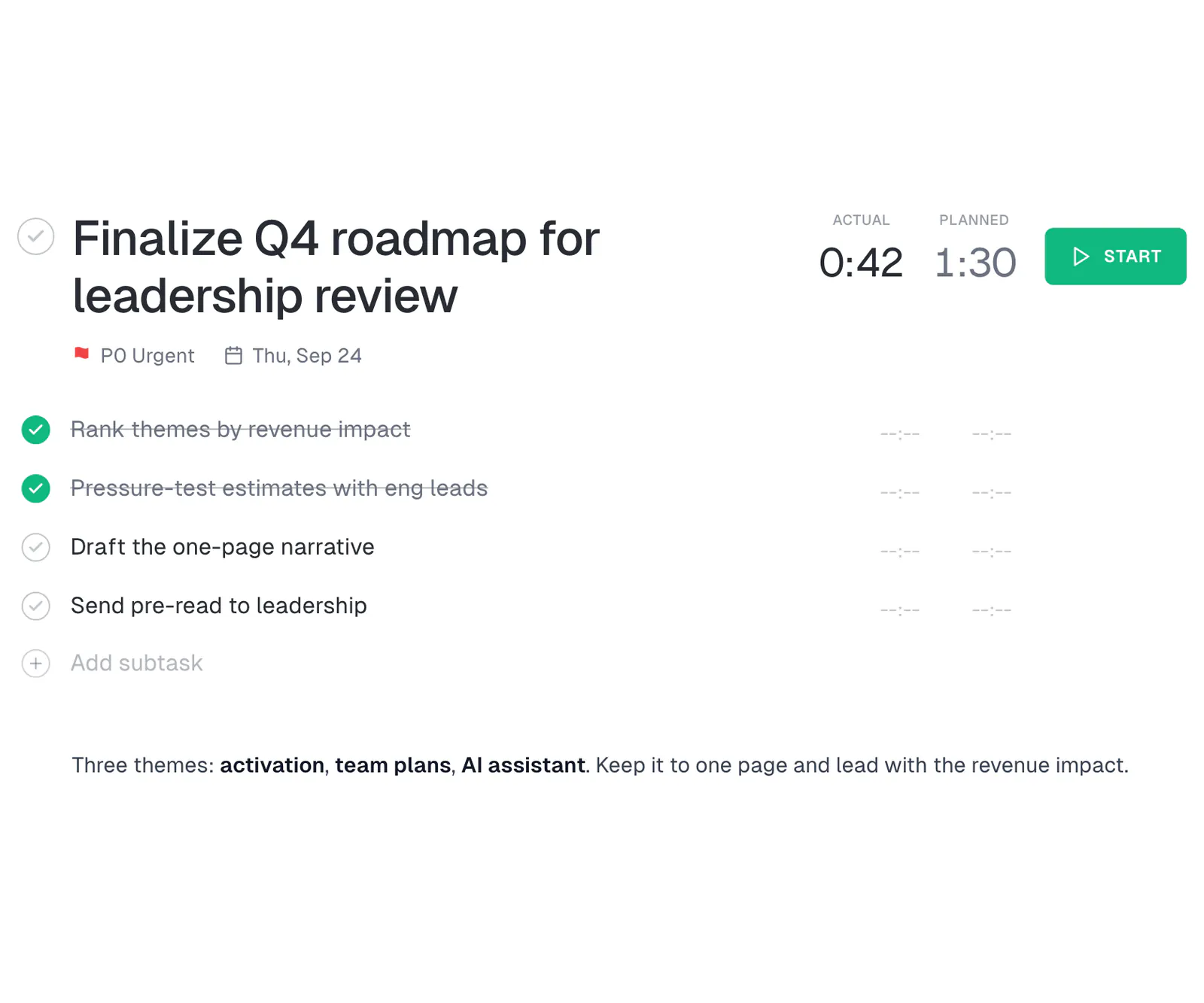
Done tasks keep their real time
Check a task off and it moves to Completed with both numbers, like 0:15 / 0:15. At the end of the day you can see where your hours went.
Over a week, you learn which tasks you always underestimate. Then you give them more time.
The details
Focus mode keeps your hands on the keyboard
Every action in focus mode has a key, so you never reach for the mouse mid-thought.
- Space, E and W: Space starts or pauses the timer. E edits real time, W edits the estimate.
- D, Z and Shift+Z: Not today? D snoozes a day, Z sends it to the backlog, Shift+Z moves it to next week.
- Subtasks and notes: Tick subtasks and write rich notes in place. Attach files and images to the task.
- Today's calendar on hover: Hover the right edge of the screen to see today's meetings and blocks.
- Next task opens by itself: Complete a task and the next one on today's list opens. No trip back to the board.
- An end to the day: When today's list is empty, you see how many tasks you did and how long you focused.
AI native
Your AI agent can read planned vs actual and plan tomorrow
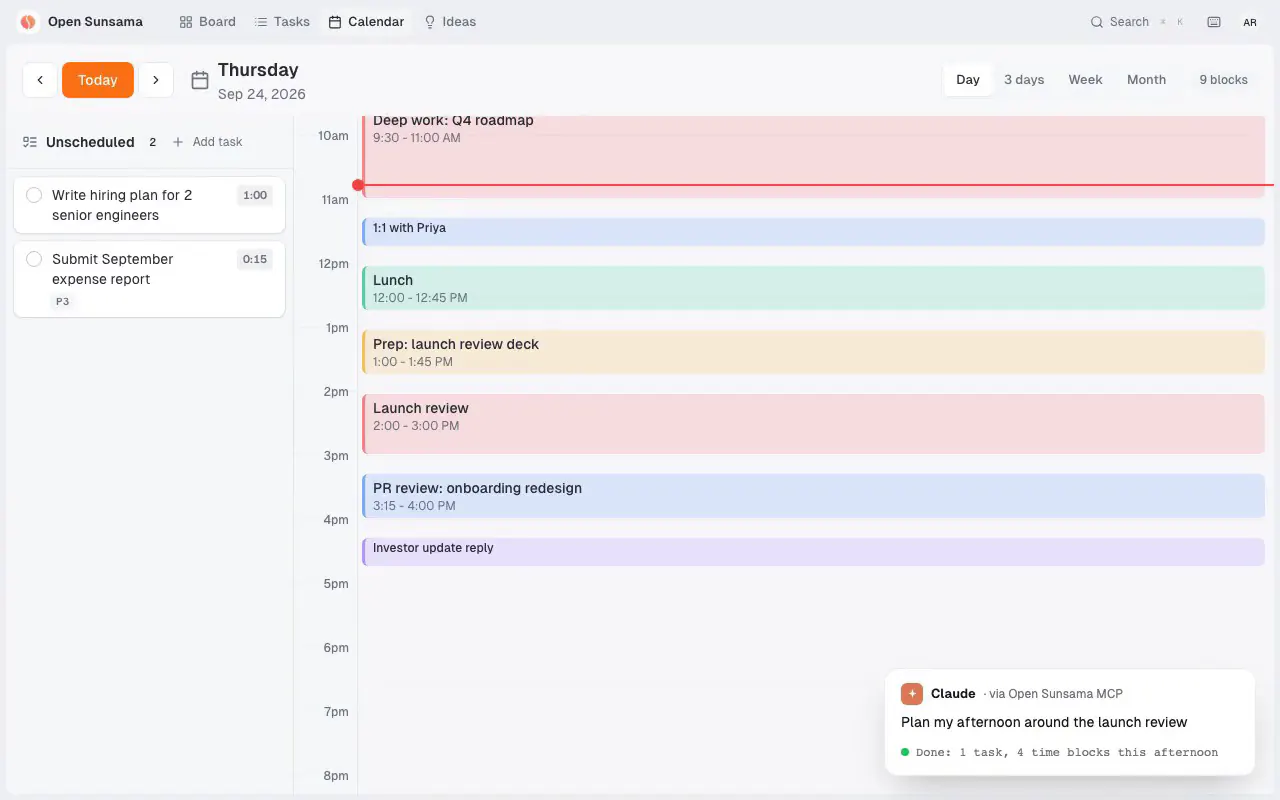
Connect Claude, ChatGPT, Cursor or any MCP client with one URL. Your agent sees each task's estimate and real time.
Open Sunsama has a hosted MCP server with 47 tools. Tasks come back with their estimate and actual minutes, so your agent can spot the tasks you always underestimate.
Ask it to plan tomorrow with that in mind. It creates focus blocks around your meetings, and you can drag any of them.
MCP server URL: https://api.opensunsama.com/mcp
Prompts to try
- Compare my planned and actual time for today. What ran over?
- Plan tomorrow with bigger estimates for the tasks I ran over on.
- Block 90 minutes of focus time for my top task tomorrow morning.
Tools it calls: get_schedule_for_day, list_tasks, update_task, create_time_block, link_task_to_time_block
Compare
Open Sunsama times your tasks inside your plan, with code you can run
Sunsama and TickTick have strong focus timers too. Todoist leaves it to add-on apps. Here is how they differ.
| Feature | Open Sunsama | Sunsama | TickTick | Todoist |
|---|---|---|---|---|
| Timer on a task | Yes: Counts up to your estimate | Yes: Task timer | Yes: Pomo or stopwatch | No: Add-on apps |
| Pomodoro cycles with breaks | No: Not built in | Yes: Pomodoro tab | Yes: 25 / 5 by default | No: Add-on apps |
| Planned vs actual | Yes: On every task | Yes: Planned and actual times | Partly: Estimated pomos | No |
| AI agents over MCP | Yes: Hosted, any MCP client | Yes: Hosted | Yes: Hosted | Yes: Hosted |
| Code you can read and self-host | Yes | No | No | No |
| Phone | Partly: Early Android APK and iOS TestFlight; mobile web app | Yes: iOS and Android | Yes: iOS and Android | Yes: iOS and Android |
Competitor facts come from each app's help docs: Sunsama focus mode, TickTick Pomodoro, TickTick focus, Pomodoro with Todoist and our MCP comparison. Checked September 2026.
Get started
You can run your first focus session in three steps
Start with one task you have put off. That is where focus mode helps most.
Create your account
Sign up on the web or download the desktop app for Mac, Windows or Linux.
Add a task with an estimate
Press A to add a task to Today. Give it a time estimate, even a rough one.
Press F, then Space
The task opens full screen and the timer starts. Work until it's done, then check it off.
Questions about focus mode
What is the best focus mode app?
We build Open Sunsama, and we think it is the best pick if you plan your day first. Focus mode opens right from your plan and tracks planned vs actual time. Pick TickTick if you want Pomodoro cycles and focus stats in a to-do list. Best focus apps for deep work
Does Open Sunsama have a Pomodoro timer?
No. The focus timer counts up against your estimate and has no set work and break cycles. If you like 25-minute sprints, split a task into 25-minute estimates and take a break between them. Pomodoro apps with tasks
How do I start focus mode?
Hover a task and press F, or right-click it and pick Focus. Press Space to start the timer and Esc to leave focus mode.
What is planned vs actual time?
Planned time is your estimate. Actual time is what the focus timer measured. Seeing both on each task shows which work you always underestimate.
Does the timer keep running if I switch devices?
Yes. The timer lives on the server, so a timer you start on your laptop keeps counting in the desktop app and in your phone's browser.
Can I use focus mode on my phone?
Yes, in your phone's browser. Open Sunsama works as a mobile web app. The phone app is an early Android APK and an iOS TestFlight build, not in the app stores yet; desktop apps are ready for Mac, Windows and Linux. Get the desktop app
Pick one task and start the timer
Open it full screen, work until it's done, and let the AI agent you already use learn from your planned vs actual time.